Operating manual
Run a paper without losing the plot.
A practical guide for creating papers, guiding candidates, correcting submissions, and releasing reports with codes.
1. Create the paper
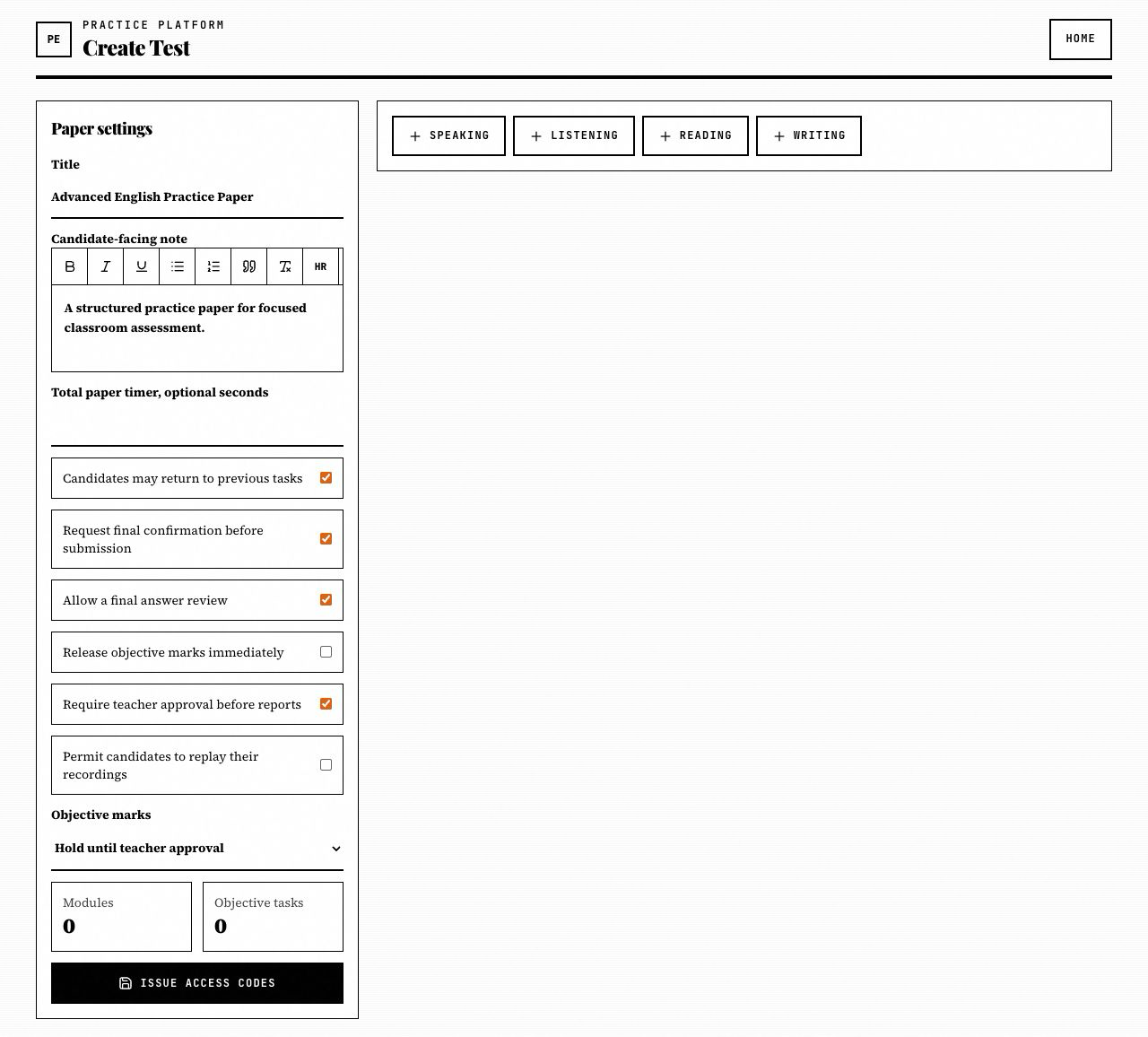
Open Create Test, add modules, instruction screens, timings, and release rules, then issue the access codes.
2. Share the candidate code
Give candidates the public code only. Keep the private assessment code for marking and report control.
3. Assess submissions
Objective responses are marked automatically. Speaking and Writing are reviewed manually from the assessment desk, grouped by paper version.
4. Release reports
Publish results when the paper is fully checked. Candidates retrieve the report with their private result code.
Code Reference
PRT-XXXXXX
Candidate access
Opens the paper runner. Share this with the class or group.
TCH-XXXXXX
Assessment and edit access
Opens editing, correction, overrides, feedback, CSV export, and report release.
RES-XXXXXX
Result retrieval
Given to each candidate after submission so they can check the report later.
01
Creating A Paper
The builder starts empty on purpose. Add Speaking, Listening, Reading, or Writing only when the paper needs that module.
Each module contains parts, and each part contains tasks. Objective tasks require one key answer. Speaking and Writing tasks are manual by design.
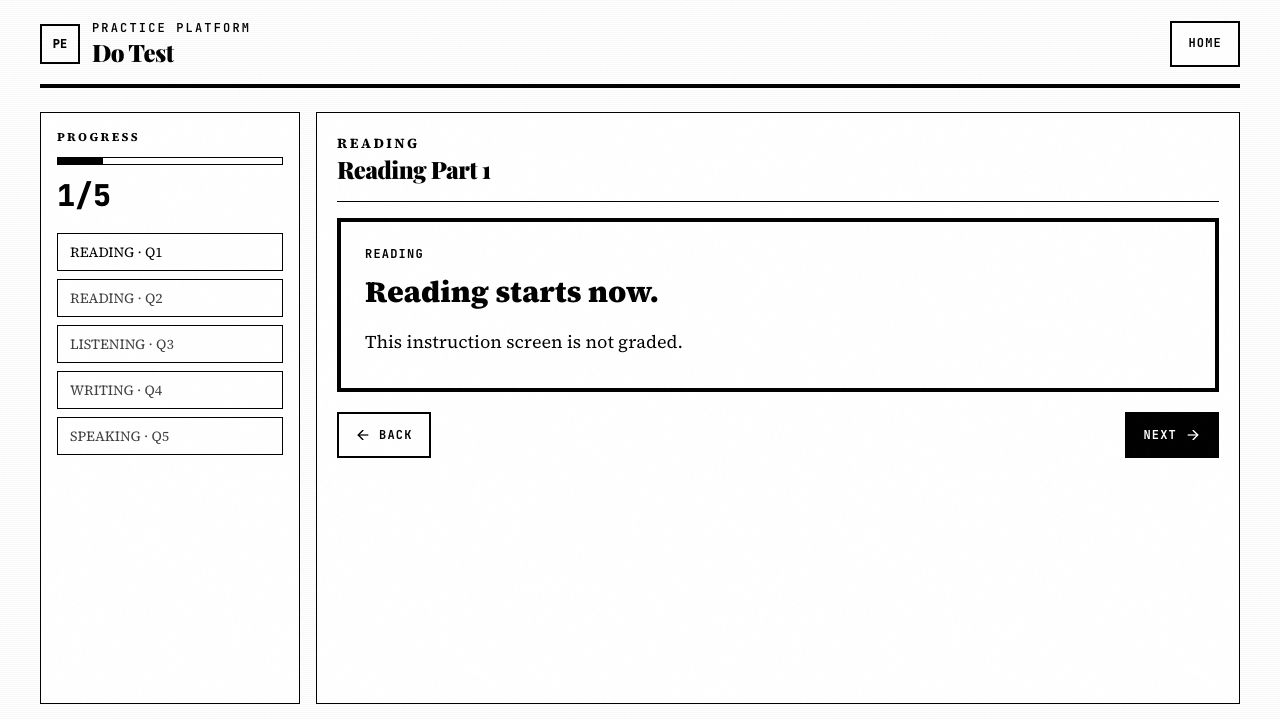
Instruction blocks are non-graded screens. Use them to introduce a module, explain replay rules, or give candidates a calm transition before Speaking.
A reliable classroom paper might include two Reading tasks, one Listening task with replay set to twice, one Writing task with a word range, one instruction screen, and one Speaking task with optional preparation time.
Before moving on
- - Set the candidate-facing note.
- - Use rich text only where it improves clarity.
- - Decide if objective marks are released automatically or held for approval.
02
Editing And Versions
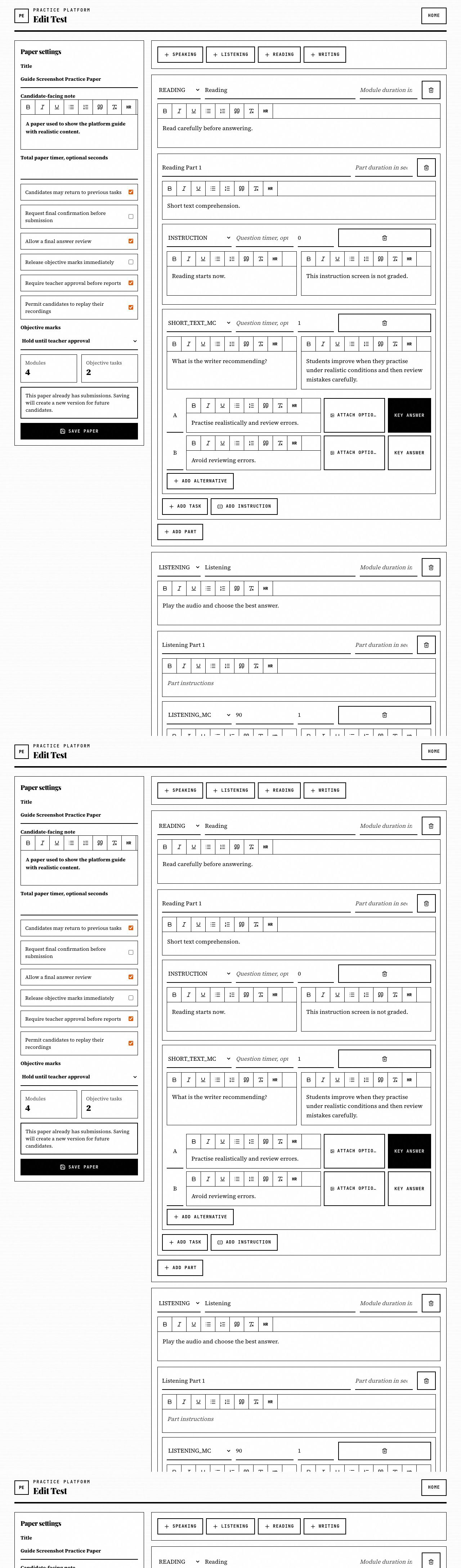
Use Edit Test with the private assessment code. The same TCH code opens both correction and editing, so teachers do not need a second secret.
If no candidates have started that version, saving updates it directly. If submissions already exist, saving creates the next version automatically.
The correction desk separates Version 1, Version 2, and later submissions. Each candidate is assessed against the exact version they completed.
Before moving on
- - Do major edits before sharing the public code.
- - Expect a new version after submissions exist.
- - Use Duplicate Test when you want a clean copy.
03
Candidate Flow
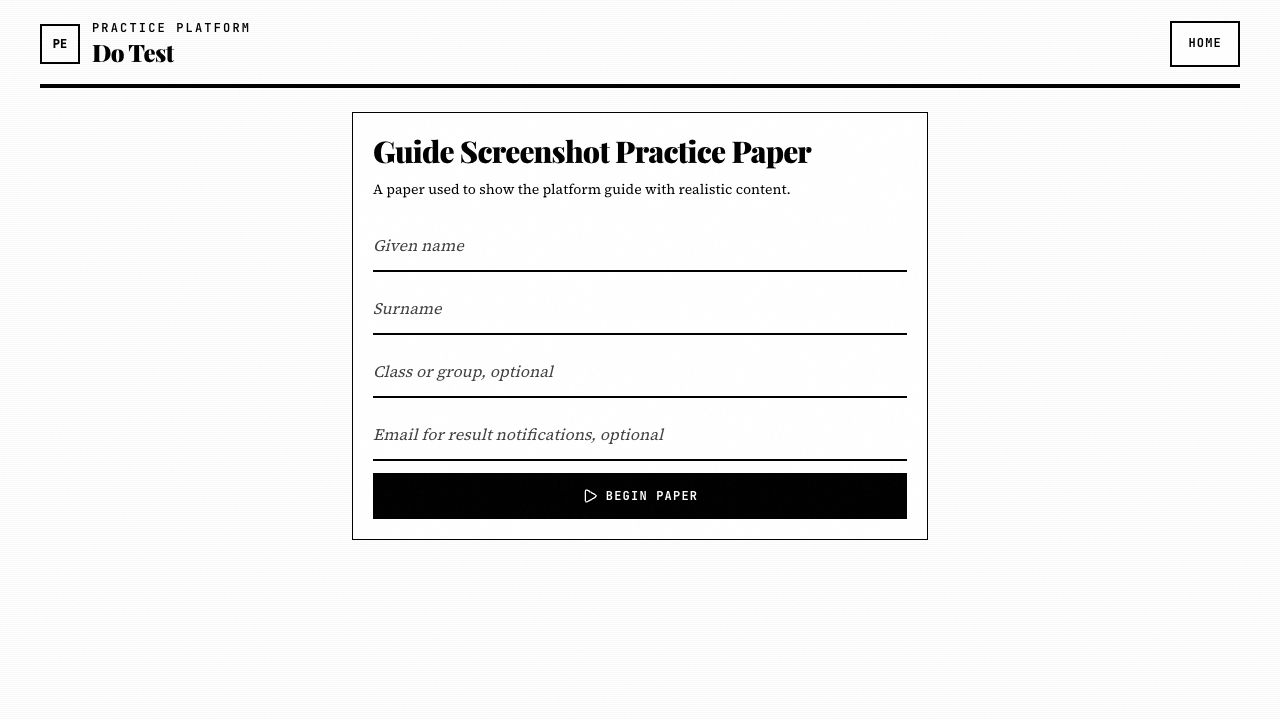
Candidates enter their given name, surname, and optional class or group before the paper begins.
If the paper includes Speaking, the browser requests microphone access before the exam opens. This keeps permission problems away from the timed section.
The first time a device opens the runner, a short orientation explains timers, autosave, listening replay rules, and speaking preparation. Candidates can hide it permanently on that device.
Before moving on
- - Use a quiet room for Speaking.
- - Keep the result code after submission.
- - Do not refresh the page unless necessary.
04
During The Paper
Timed tasks show a countdown only when a timer is configured. Untimed tasks stay clean and do not display a timer.
Responses are autosaved locally and sent to the server. The page warns before accidental closure and logs simple focus changes for review.
When the next task is in a different module, the runner shows a short transition note. It explains the next task type without revealing the exact question.
Before moving on
- - Answer every visible task before submitting.
- - Follow the listening replay limit.
- - Use the final confirmation screen carefully.
05
Speaking Tasks
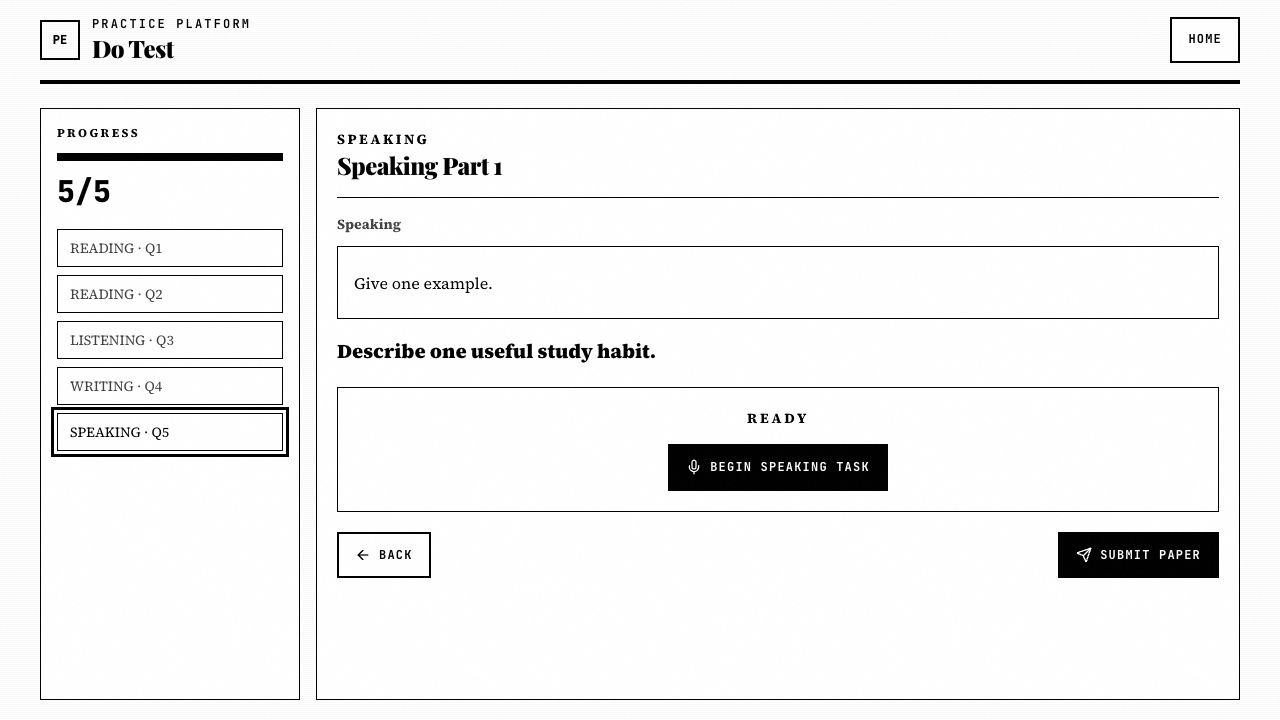
Preparation time is optional. If configured, candidates use it for silent planning. When it reaches zero, a tone plays and recording begins.
There is no manual stop button. The recording closes automatically after the required speaking time, then uploads before the candidate can continue.
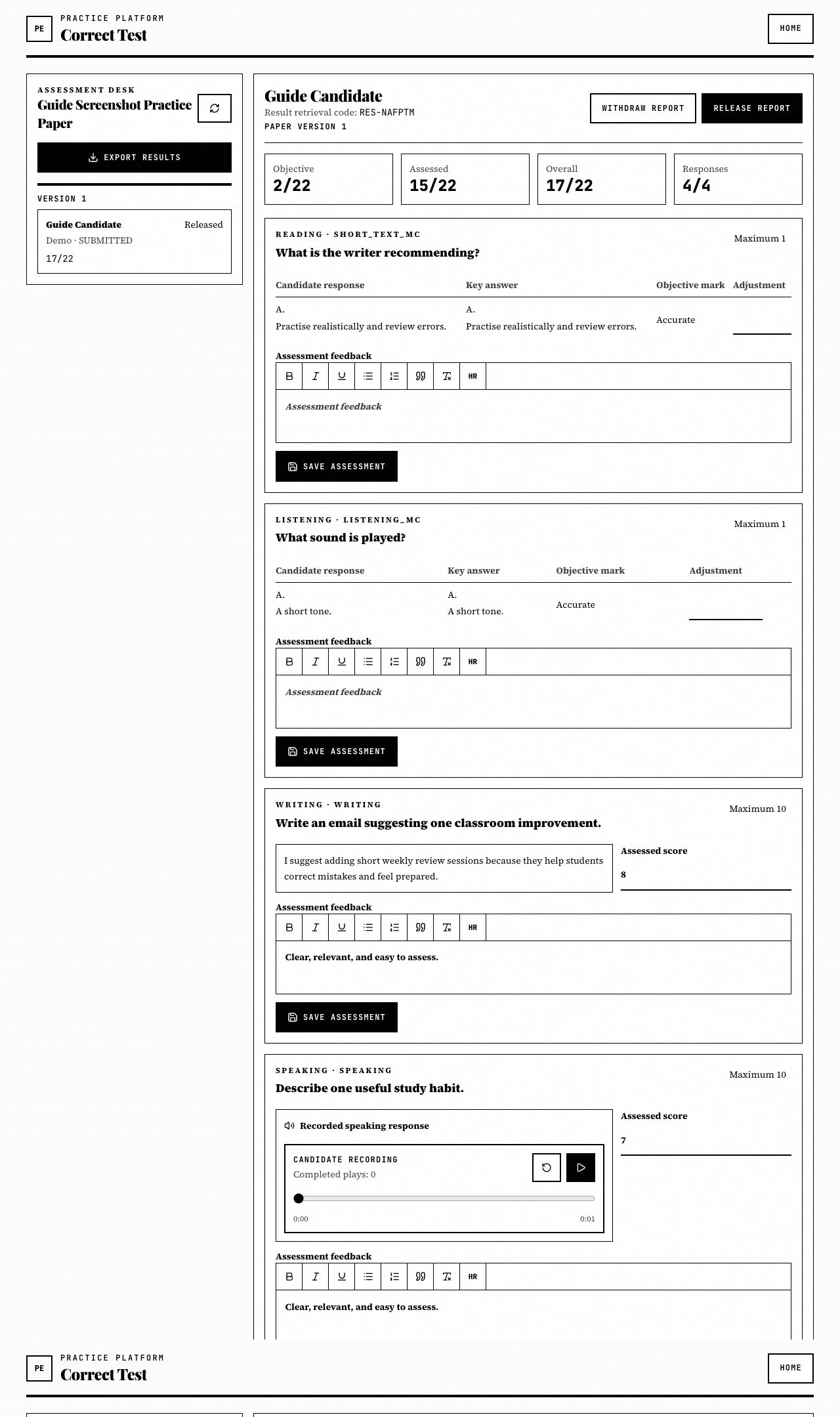
Teachers replay the saved audio in the assessment desk, enter a score, and add feedback. No transcription, AI marking, or automatic speaking evaluation is used.
If a device blocks microphone access, the candidate should switch browser or device before the timed section begins.
Before moving on
- - Set preparation to 0 seconds if planning time is not needed.
- - Set response time to the exact required speaking duration.
- - Enable candidate playback only when it fits your classroom rules.
06
Correction And Reports
Open Correct Test with the private assessment code. The desk shows submissions, objective marks, manual scores, recordings, written responses, and release status.
Objective answers show the candidate response, key answer, automatic mark, and an adjustment field for teacher override.
Release the report only when assessment is complete. Before release, candidates see that the paper has been submitted but grades are not available yet.
Before moving on
- - Check the version separator before marking.
- - Review overrides before publishing.
- - Export CSV when you need a class record.
07
Accounts And Email
Accounts are optional. Teachers can still create, edit, correct, and publish with codes only.
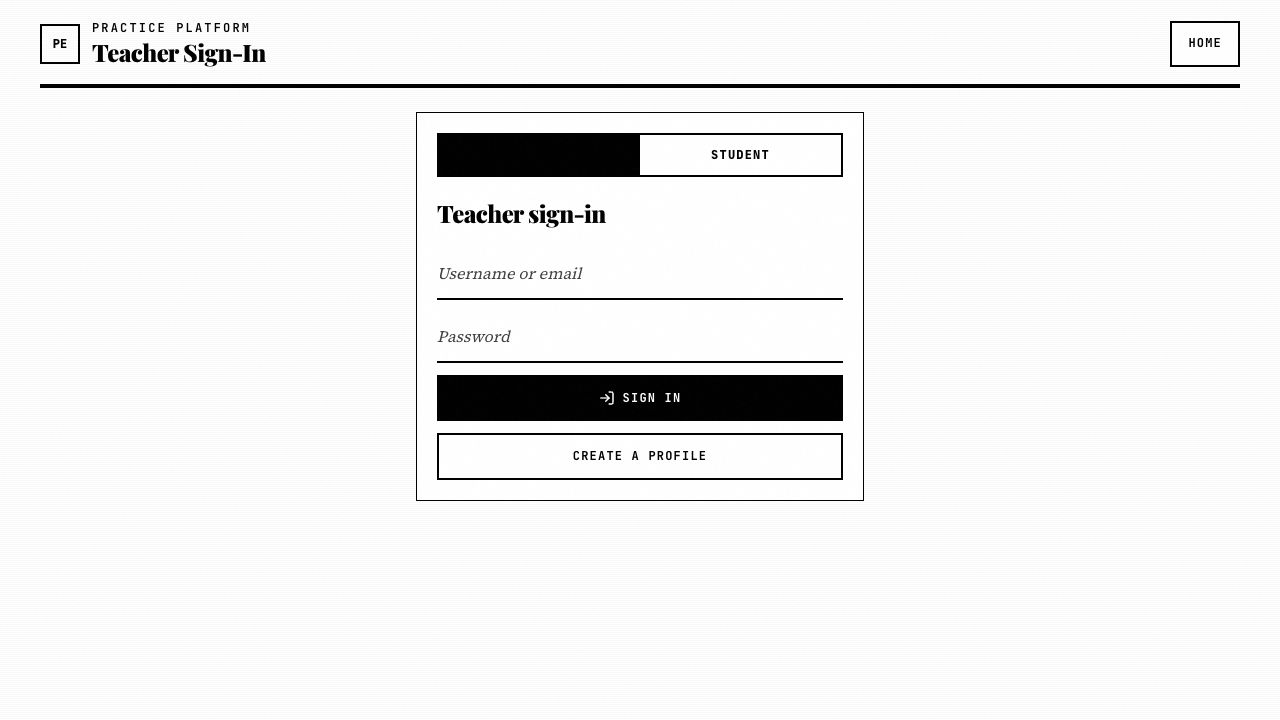
Teacher profiles can import existing papers by entering old TCH codes. Student profiles can claim previous submissions by entering RES codes.
Email notifications are SMTP-based. When configured, students receive result codes and grades-available messages, while teachers receive submission notices.
Before moving on
- - Keep SMTP disabled until credentials are configured.
- - Test email from Maintenance before using it with a class.
- - Anonymous candidates can still add an optional email.
08
Checking Grades
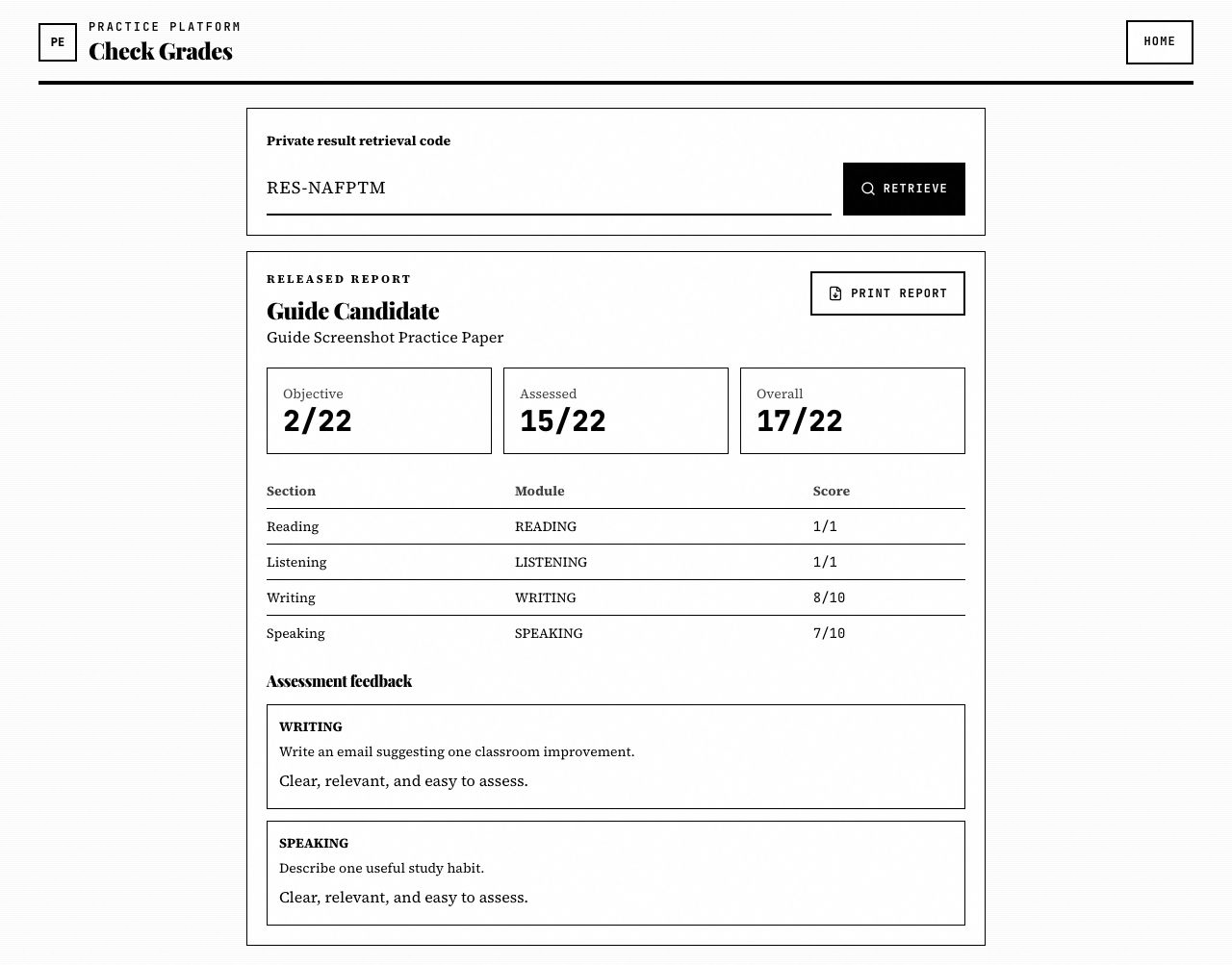
Candidates enter the private result retrieval code from the submission screen.
If the report is not released, the page confirms that the paper has been submitted and explains that grades are not available yet.
Once released, candidates see the overall score, section scores, and assessment feedback. The browser print action can be used for a simple report copy.
Before moving on
- - Use the exact RES code.
- - Wait for release if the report is pending.
- - Print the page if a paper copy is needed.